How to bleep out words in Premiere Pro
Most tutorials on how to bleep out words in Premiere Pro were written around 2015 and never updated. Razor the clip, mute the sliver, drop a beep MP3 underneath. That still works, and we cover it below. But if you updated Premiere any time in the last year, you may not need it at all: version 25.6 (November 2025) added a bulk bleep that reads the transcript and censors every instance in one pass. Check that first. Then razor.
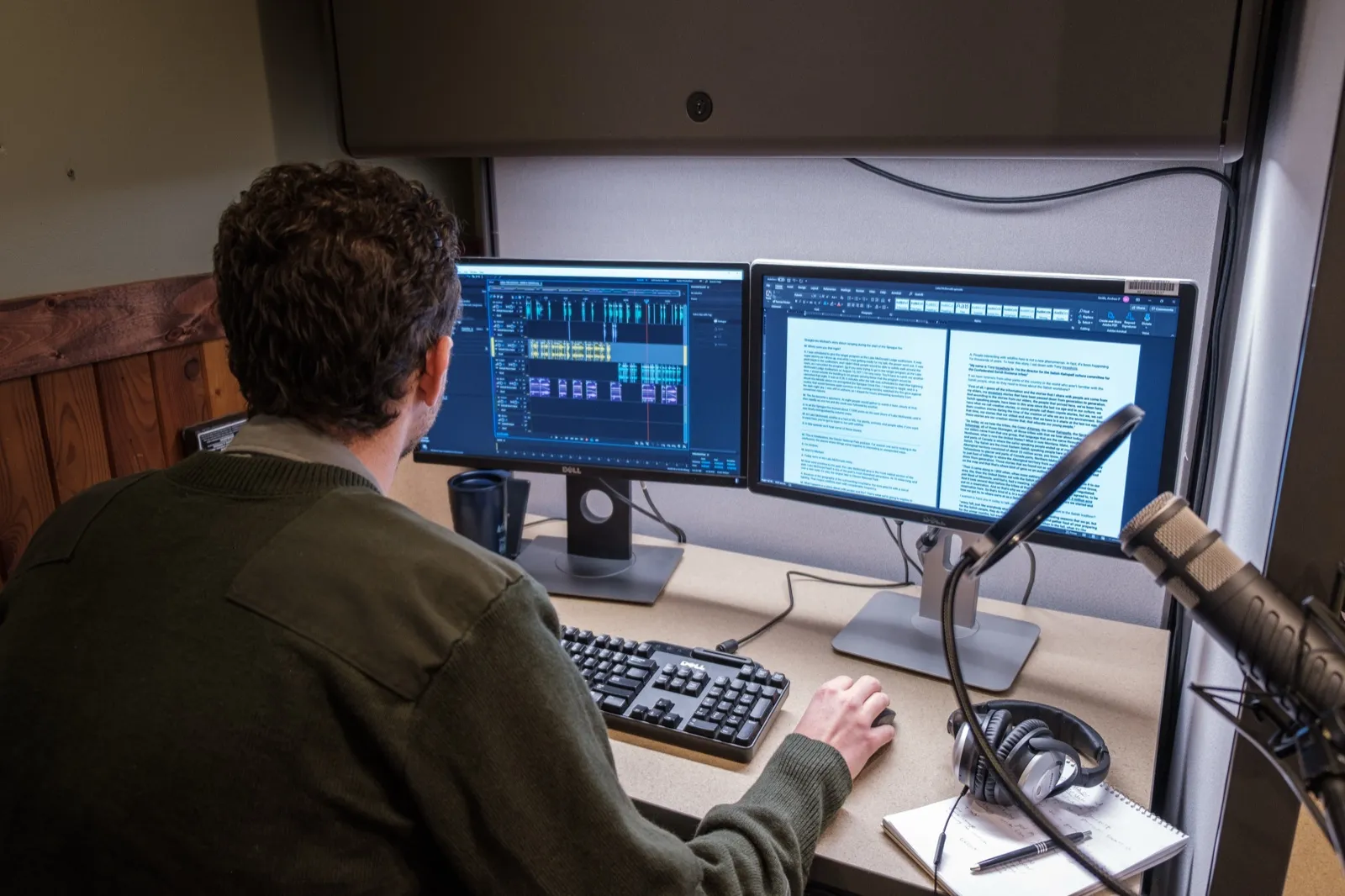
The built-in Premiere Pro bleep (25.6 and later)
Adobe’s own line for the feature is that you flag words or phrases and Premiere handles every instance across the whole project. It can bleep, mute, or drop in a sound effect. The flow, straight from Adobe’s release thread:
-
Transcribe the sequence if you have not already. The feature works from the transcript, so no transcript means no bleep.
-
Open the Text panel and switch to the Transcript tab.
-
Click Filter, then Censored words. A word list dialog opens. Add your words and click Save. Adobe pitches it for a curse word, a confidential name, or anything you do not want in the cut, so this is also the tool for redacting a phone number.
-
Click Apply Effect in the transcript, pick Bleep (or a sound effect, Adobe mentions a duck quack), then Replace or Replace all.
The gotcha: Apply Effect only shows up in Text-Based Editing mode, not Static transcript mode. If you followed those steps and the button is not there, that is why. Switch modes and it appears.
Under the hood Premiere quiets the dialogue with the Amplify effect rather than touching clip volume, so any keyframes you already drew survive. Sensible.
The honest limit: it only knows what the transcript knows. Mumbled words, cross-talk, heavy accents, and background noise all become missed swears. Treat the transcript as a search index, not ground truth, and scrub the export with headphones before you send it. (Adobe dropped “Pro” from the name in version 26. Everyone still says Premiere Pro, so do we.)
Bleeping one word by hand
For one or two words, an older Premiere, or a swear the transcript missed, the manual method is faster than setting up a word list.
-
Find the word. If the sequence is transcribed, the transcript in the Text panel takes you straight to it. If not, scrub the waveform, but do not trust the waveform alone. Two very different words can look identical.
-
Razor both sides of the word. Press C for the razor, cut just before and just after. Give it a little room on each side, because the first consonant and the tail of the word carry it. A bleep that starts exactly on the vowel lets the “f” through.
-
Mute the sliver, do not delete it. Select the piece, press G for Audio Gain, and set the gain as low as the dialog lets you. Deleting shifts everything downstream and leaves a hole. Muting keeps the timeline exactly as it was.
-
Lay the tone on the track below, trimmed to the same length as the muted piece.
-
Fade both ends of the tone. A tone dropped in with hard edges clicks, because the sound starts at full volume instead of rising from silence. Two to four frames of Constant Power on each end kills the click. This is the step every tutorial skips, and it is the difference between “bleeped” and “badly bleeped”.
Match the tone level to the dialogue around it. A bleep noticeably louder than the speaker is its own kind of unprofessional.
Where the bleep sound comes from (you already have one)
You do not need to download anything. Premiere can generate the tone itself: File, New, Bars and Tone. Open it in the Source Monitor and drag only the audio into the timeline. What you get is a steady reference tone, which is exactly what a censor bleep is. It has no license attached, and it has been the editor’s trick on Adobe’s own forums since at least 2015. Almost nobody repeats it anymore.
If you want something other than a plain tone, or a lower or higher pitch, our bleep sound effect post covers free options and what the licenses actually let you do.
Your captions still contain the word
This is the part nobody mentions. The transcript that helped you find the swears is now a caption file with every one of them in it. Burn it in, upload it to YouTube, or hand it to a client and the censoring was cosmetic. Adobe’s beta thread literally asked users how they want bleeped words shown in captions, which tells you it is an open problem. Fix the caption text before it leaves the project.
The faster route for long videos
Premiere wins when the video already lives in a Premiere timeline with color, graphics, and a mix around it. You are not going to round-trip an export through a web tool to fix two words. Same story in DaVinci, and we have a DaVinci Resolve walkthrough for that.
A browser tool wins when the file is a finished export or a raw recording and cleaning it is the whole job. A 45 minute podcast, a stream VOD, an interview with a foul-mouthed guest. Building a project and exporting through a full editing app for what is basically find-and-replace is a lot of ceremony.
That is what Instableep is for. Upload the file, it transcribes (100+ languages), pick your target words or use the curse-word preset, choose a sound, export. The default bleep is the classic tone, alongside a brighter second beep, quack, buzzer, air horn, and silence. Volume, fade, and margin are adjustable, and margin is the “bleep wider than the word” padding from above, done for you. Paid exports leave the video untouched, no re-encode. Nothing to install, works on a phone. More on that approach in how to censor audio online.
For clips that do not need a Premiere project, bleep out words in a video online covers the browser route.
Try Instableep for free, 20 minutes of transcription a month at no cost, with a watermark on free exports.